Settings
How long the audit log is kept. On SuaveDocs cloud the card reads "Your workspace's name and web address, and how long the audit log is kept."
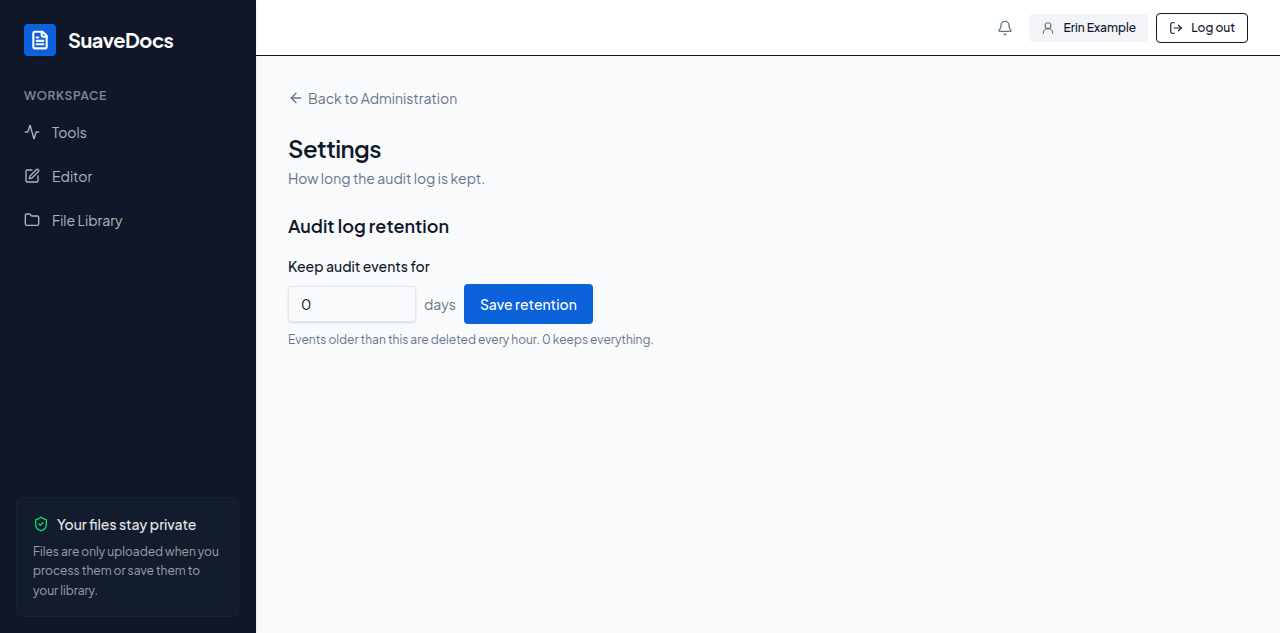 Figure: Settings: how long the audit log is kept.
Workspace
On SuaveDocs cloud, the first card under Administration → Settings is headed Workspace. Owners and administrators who may rename the workspace see it; in your Personal space it shows only the name.
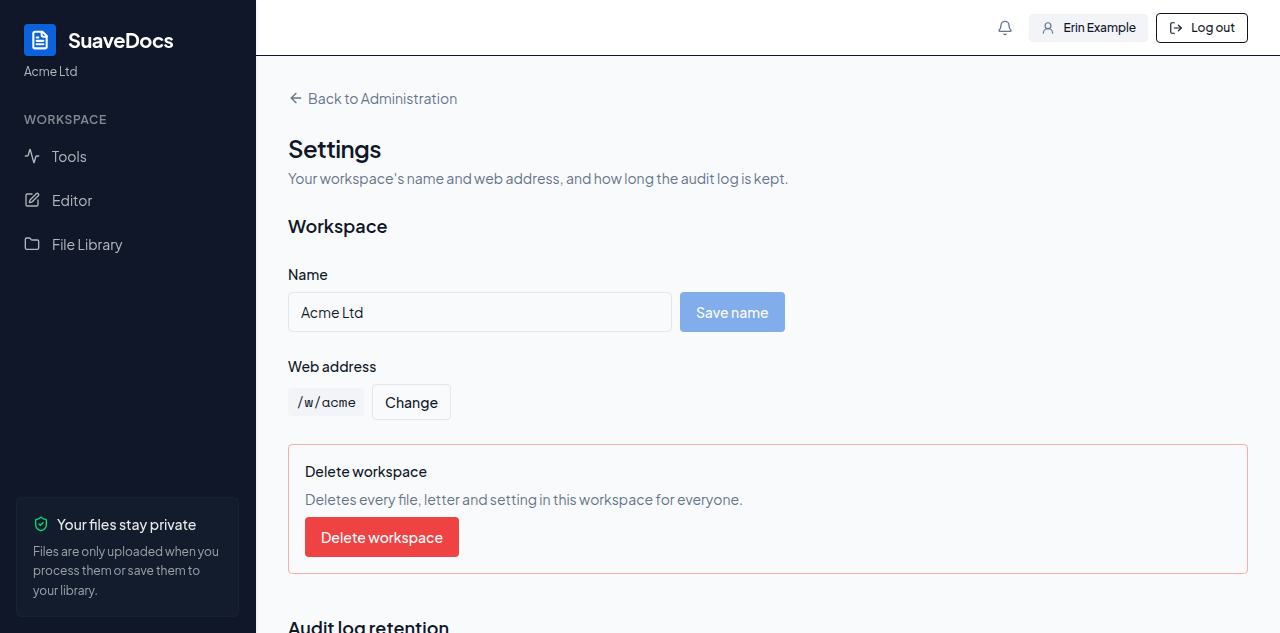 Figure: The Workspace card in Administration › Settings, showing the workspace name and its web address.
To rename the workspace: change the text under Name and select Save name. SuaveDocs says "Saved." and the new name appears in the sidebar and the account menu.
To change the web address: under Web address you see the address people use to open the workspace, for example /w/acme. Select Change. SuaveDocs warns "Bookmarks and links to the old address will stop working." Type the new address (3 to 40 letters, numbers or hyphens); SuaveDocs checks it as you type, in the same words as when you create a team: "Use at least 3 letters or numbers." when it is too short, "Use only lowercase letters, numbers and hyphens." when it has anything else, and "Not available. Try acme-ltd-2?" when it cannot be used — select Use this to put the suggestion in the box (with no suggestion it says "Not available. Try another address."). Select Save address; the button is unavailable only while SuaveDocs is checking the address or has found it not available. Your browser moves to the new address and you stay on this page. If SuaveDocs cannot save it, it says why under the card, for example that the address is taken or that the workspace is read-only.
To delete the workspace (owners only, and never your Personal space): select Delete workspace. A window explains that everything in the workspace goes for everyone, and gives the date, 30 days from today, when SuaveDocs will delete it: "We'll delete everything on
Audit log retention
To change how long audit events are kept:
- Open Settings from Administration.
- Under Audit log retention, type a number of days into Keep audit events for — from 0 up to 3650. "0 keeps everything." The note under the box explains: "Events older than this are deleted every hour. 0 keeps everything."
- Select Save retention.
- If you're shortening the window (or setting it for the first time), a confirmation appears first, telling you roughly how many events that would remove right away — for example "More than 100 events are older than
<date>" or an exact count. Confirm with Save and delete, or Cancel.
When your plan, license or Community edition keeps the audit log for a limited time, typing 0 or more days than that shows "Needs a license" under the box on a server running as Community edition, or "Not in your plan" on a licensed server or in a cloud workspace. You can still select Save retention; SuaveDocs then says why it turned it down, for example "Community edition keeps the audit log for up to 30 days. Pick 30 days or fewer, or add a license in Administration → License." If audit events are kept longer than the limit today, a line says when that changes, for example "From 19 November, audit events older than 30 days will be deleted." — nothing is deleted before that date.
What you'll see when it's done: a "Retention saved" confirmation.
- An invalid number: "Enter a whole number of days between 0 and 3650."
- Settings couldn't be loaded: "The organization settings could not be loaded."
- The save itself failed: "The retention setting could not be saved. Try again in a moment."
The confirmation dialog is explicit that this cannot be undone: "Audit events cannot be restored."