Letterhead
The header printed on letters that use the workspace letterhead.
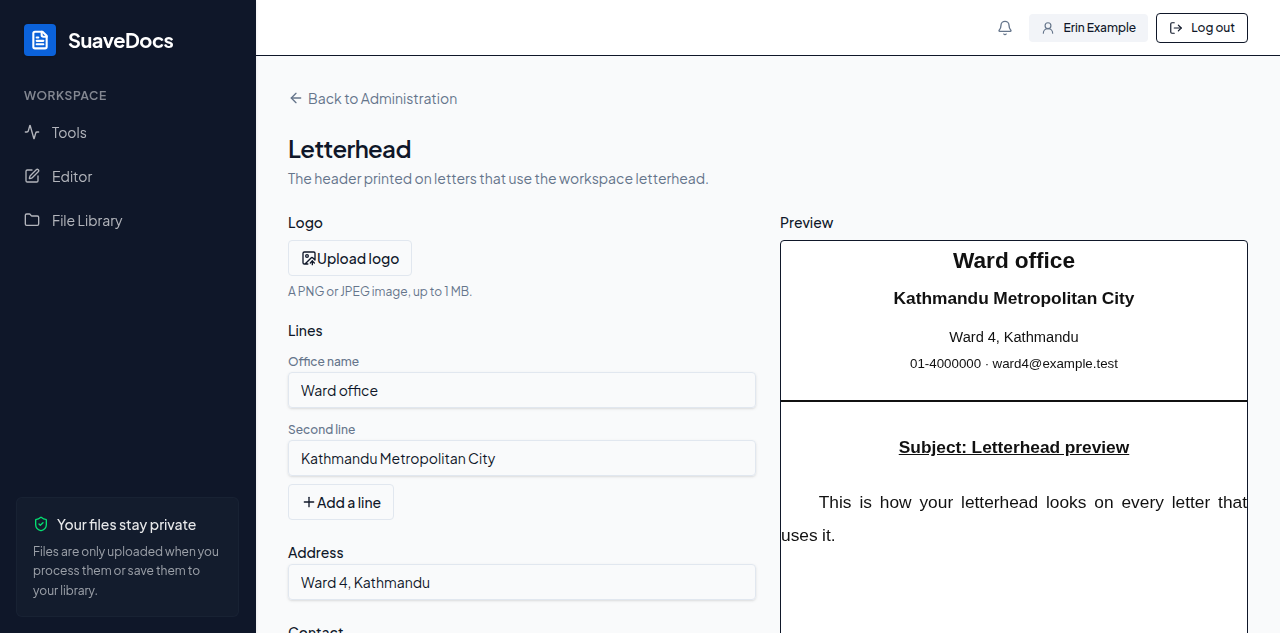 Figure: the Letterhead page, with the live preview of a sample letter.
To set up the letterhead:
- Open Letterhead from Administration.
- Select Upload logo if you want one — a PNG or JPEG image, up to 1 MB and 4000 × 4000 pixels.
- Type the Lines — the first is the Office name; Add a line adds up to four.
- Fill in the Address and Contact (phone, e-mail, website) if you want them.
- Choose the Alignment: Centre or Left.
- Watch the preview — it shows the letterhead on a sample letter as you type.
- Select Save letterhead.
What you'll see when it's done: "Saved. Letters that use the workspace letterhead now show it."
To remove it: select Remove letterhead and confirm — "Remove the workspace letterhead?" / "Letters that use it will print without a header until you save a new one." — "The workspace letterhead was removed. Letters that use it now print without a header."
If something goes wrong
- The logo isn't right: "Choose a PNG or JPEG image.", "Choose a PNG or JPEG image under 1 MB.", or "The image is too large. Use one up to 4000 × 4000 pixels."
- No line yet: "The letterhead needs between 1 and 4 lines."
- Too much text: "The workspace letterhead has too much text. Keep it under 2,000 characters."
- It couldn't be loaded: "The workspace letterhead couldn't be loaded." followed by the reason, or "Try again in a moment."