Sign PDF
Sign a PDF with your own signature. It appears on the page where you put it, and the file carries a digital signature that PDF readers can check — who signed, when, and that nothing changed afterwards.
To have other people sign a PDF instead, select the Request signatures tab at the top of Sign PDF (the first tab, Sign it yourself, is this section) — see Signatures.
To sign a PDF:
-
Open Sign PDF from the tools list.
-
Drop your PDF, or select Choose a file or From library — one PDF at a time.
-
Under 1. Your signature, select one of your saved signatures. The first time, select Make a signature and choose how:
- Draw: sign in the box with a mouse, a finger or a pen. Undo takes back the last stroke; Clear starts again.
- Type: check your name under Your name (the EN / ने switch at the end of the box works here as in every text box — see Typing in Nepali in any field) and pick a Style — Handwriting, Clean, Devanagari or Devanagari bold. Each style shows your name as it will look.
- Upload: select Choose a picture — a PNG or JPEG up to 256 KB. A white background is removed when you save.
Then select Save signature. SuaveDocs keeps up to three signatures for you; to remove one, select its bin (Delete this signature) and confirm with Delete.
-
Choose what goes under it: Show my name ("Signed by" and your name) and Show the date. How it will look shows the result straight away.
-
In the preview, go to the page you want with the arrows above it (a one-page PDF has none), drag your signature into place and drag its corner to make it bigger or smaller; under 2. Place it, Size does the same. The preview updates as you drag. With the keyboard, the arrow keys move it and + and − resize it.
-
Choose the Pages: Only this page, Every page, or These pages (type them, for example "1, 3-5").
-
To record a Reason or a Location in the signature, type them under More options.
-
To choose the certificate your signature is made with, open More options and look under Certificate. While SuaveDocs looks, it says "Checking your certificates…". You can choose SuaveDocs certificate ("The certificate SuaveDocs makes for you." — the default), My certificate:
<name>("Issued by<issuer>") once you've added your own in Settings (see Signatures → Your own signing certificate), or — for administrators, once your organisation has one — Organisation certificate ("Sign on behalf of your organisation."). A certificate that has expired is not offered. With only SuaveDocs' certificate, More options says "Your signature uses the certificate SuaveDocs makes for you. To use your own, add it in Settings." — Settings opens Settings at Signing certificate, in the same tab, so once you've picked a PDF the line adds "Going there doesn't keep the PDF you picked." On the desktop app while you're offline, it says "Your certificates show when you're connected." instead. If the list can't be loaded, a line under the steps says "Your certificates couldn't be loaded." with Try again; you can still sign with SuaveDocs' certificate. -
Select Sign document.
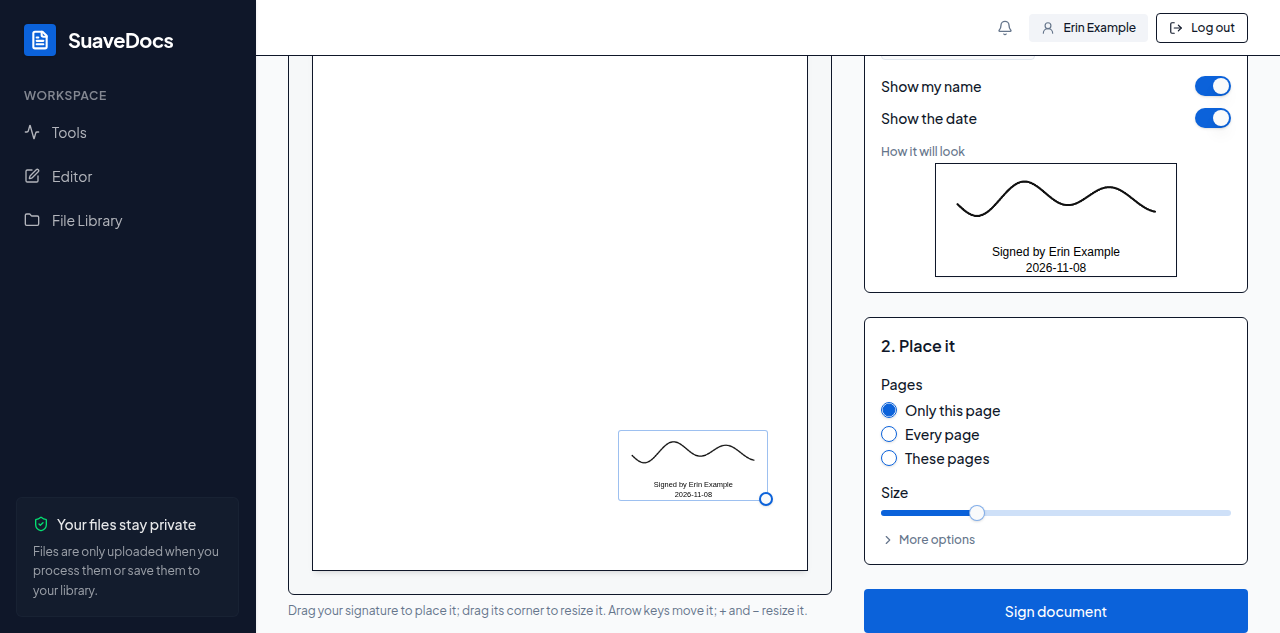 Figure: your signature on the page before you sign — drag it to where it should go.
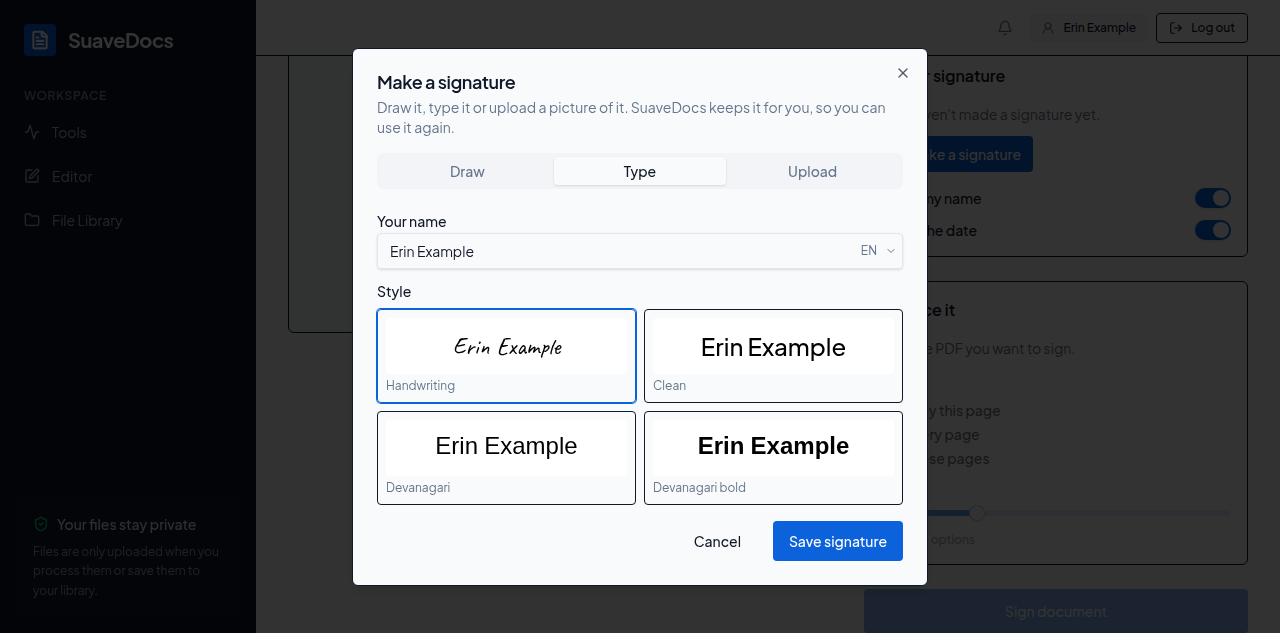 Figure: making a signature by typing your name.
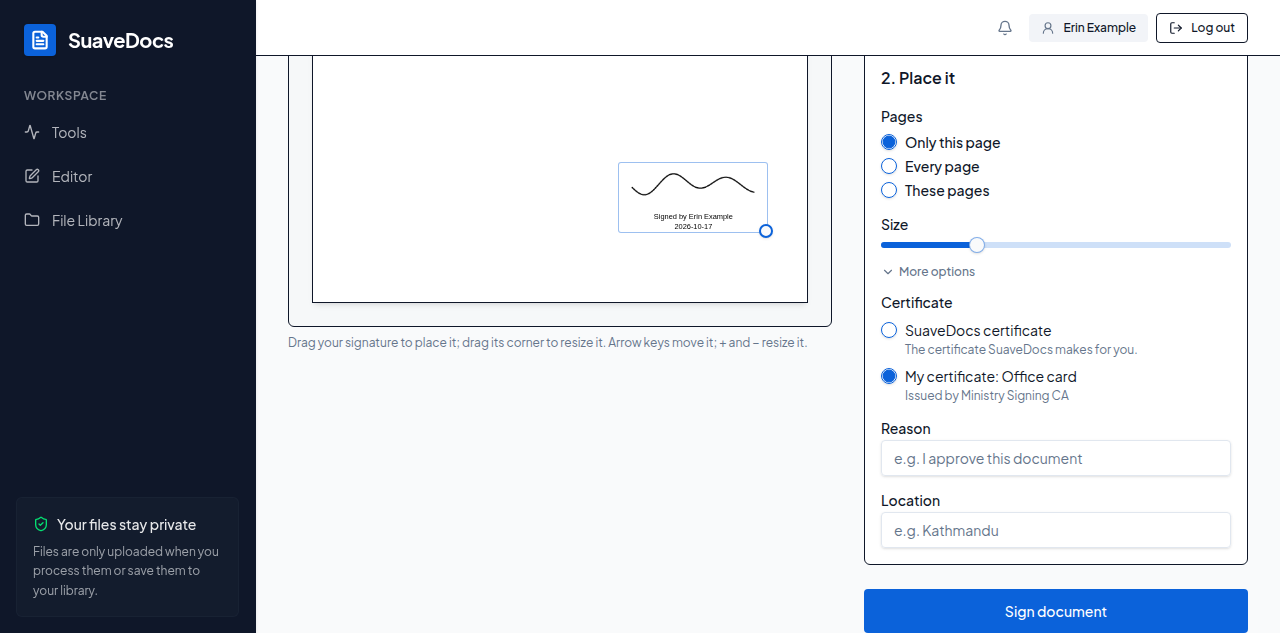 Figure: choosing the certificate under More options.
While it runs: "Uploading your PDF…", then "Signing…".
What you'll see when it's done: "Signed. <name>_signed.pdf is ready." with Download, Save to Files and Sign another document, and, when you signed with the SuaveDocs certificate, under them: "Readers see a verified signature once they trust your organisation's certificate — Administration can download it." (see For administrators → Signing).
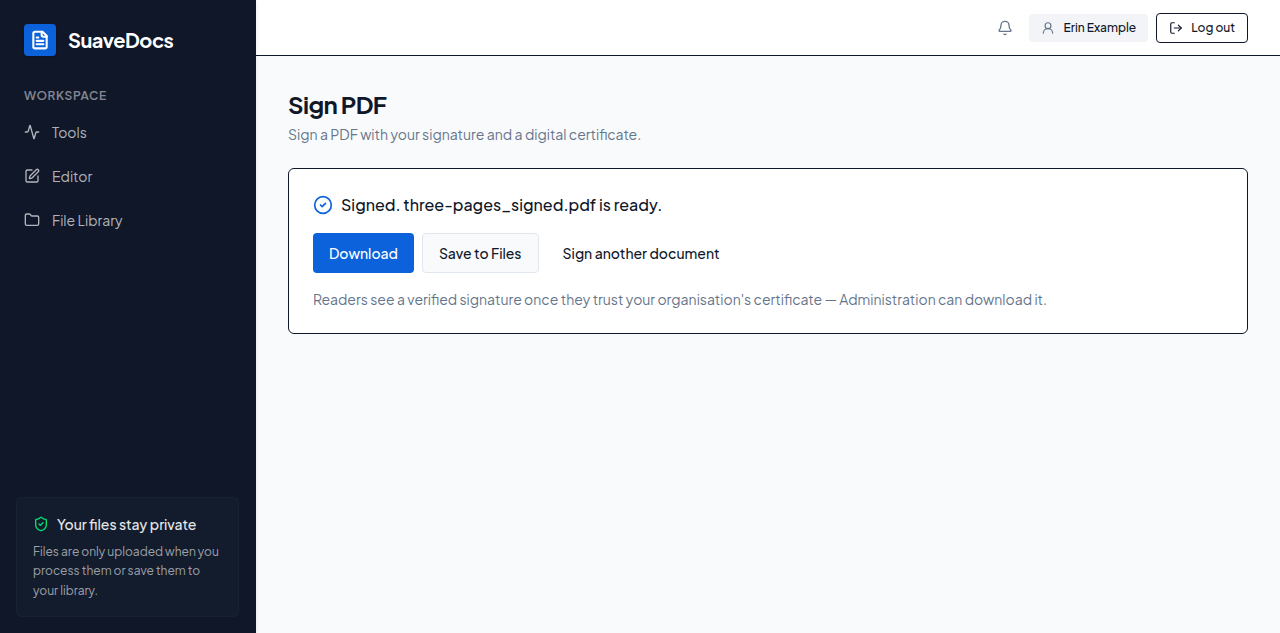 Figure: the signed file, ready to download or save.
- "You can keep up to three signatures. Delete one first." — delete a saved signature, then make the new one.
- "Use a PNG or JPEG up to 256 KB." — choose a smaller picture, or a PNG or JPEG.
- "This PDF already has a signature, so yours can go on one page only. Choose one page and sign again." — under Pages choose Only this page, go to the page you want, then select Sign document again.
- "This PDF can't be shown here." — the preview couldn't draw the file; check it opens in a PDF reader, or try another copy of it.
- "Your signatures couldn't be loaded." — check your connection, then reload the page.
- "Type the pages to sign, for example 1, 3-5." or "No page matches the pages you entered." — check These pages.
- "This PDF is certified and doesn't allow more signatures." — whoever certified the PDF locked it; ask them for a copy that isn't certified.
- "This PDF is password-protected. Remove the password first, then try again." — use Remove a password first.
- "The timestamp server didn't answer. Try again, or ask an administrator to check Administration → Signing."
- "Signing isn't set up on this server yet. Ask an administrator."
- "That certificate isn't available any more. Choose another." — the certificate you chose was removed or replaced after you chose it. More options opens with SuaveDocs certificate chosen again: choose the certificate you want, then select Sign document again.
- "This certificate expired on
<date>. Upload a current one." — add a current certificate in Settings, or sign with the SuaveDocs certificate. The list of certificates is read again, and More options opens with SuaveDocs certificate chosen. - "Only administrators can sign for the organisation." — choose another certificate.
- "This certificate can't sign documents. Ask whoever issued it for a signing certificate." — the certificate you chose isn't usable for signing; choose another.
- On the desktop app, offline: "Signing needs a connection." — Sign document stays off until you're back online, and your signatures load again by themselves when the connection returns.
- On the desktop app, signed out: "Signing a document needs a signed-in person." — sign in (see Desktop app → Signing in on desktop), then sign the document.
The full editor still has its own Sign step, which stamps a signature picture on pages without a digital signature, for when you want it together with other changes.