Sending a document for signing
Start from Request signatures on the Signatures page, from the Request signatures button (the pen) on a PDF in your file library, or from the Request signatures tab of Sign PDF.
Sending documents for signature is included in the Free plan (see Plans, quotas and trials). If your plan or license leaves it out, the Signatures page and the first step of a request (where you choose the people) say so above Request signatures: "Sending documents for signature isn't included in your <plan> plan." followed by "Ask for more to send them, or sign a document yourself with Sign PDF." if you can ask for a change, "Ask a workspace owner for more, or sign a document yourself with Sign PDF." if you can't, or "Ask your administrator to upgrade, or sign a document yourself with Sign PDF." on a server your organisation runs itself — with Ask for more when your organisation offers it (an administrator of such a server gets Open License settings), and Sign PDF, which is always there: signing a document yourself is in every plan. Request signatures still works; if SuaveDocs turns the request down on any step, its sentence takes the place of Send request, with Sign PDF beside it, and the draft is kept under Sent as "Not sent yet" so you can send it once the plan includes it.
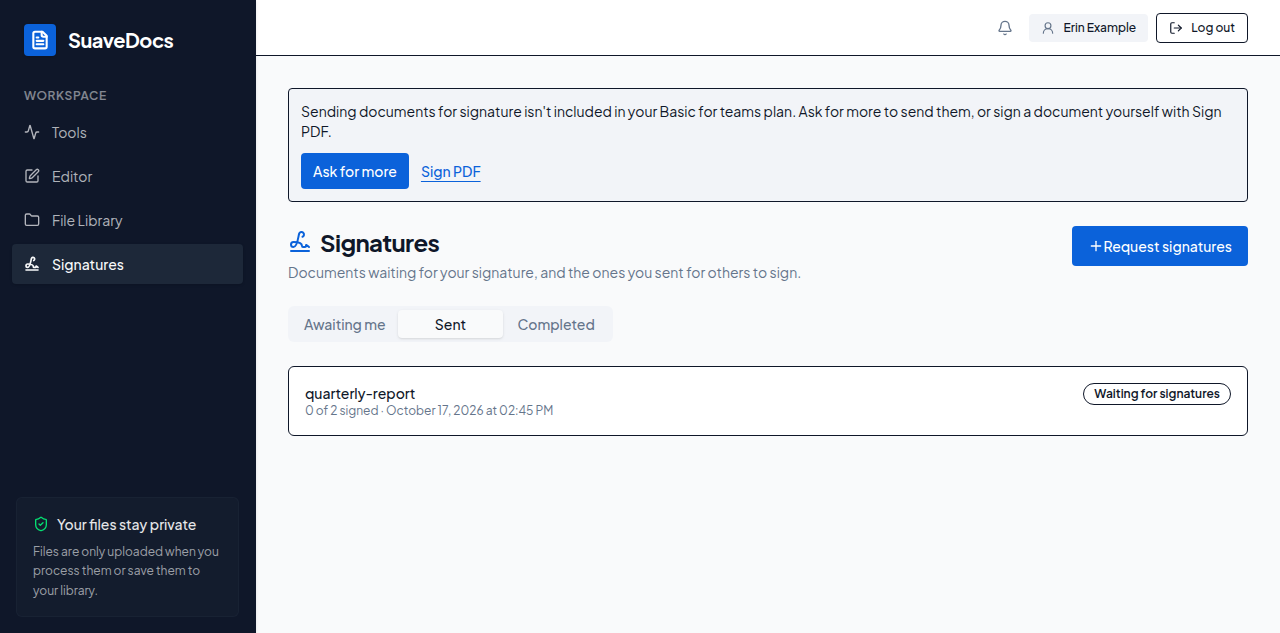 Figure: the Signatures page on the Basic for teams plan, which leaves out sending for signature.
To send a document for signing:
-
Choose the PDF: drop it, select Choose a file, or From library. (Started from your file library, it is already chosen.) "Getting your PDF ready…" shows while SuaveDocs prepares it.
-
1. Signers — add the people who sign, in the order they sign:
- Add someone from your workspace: type a name or e-mail and pick the person.
- Add someone by e-mail: type their E-mail and, if you like, their Name (optional), then select Add. If you leave the name out, they type their own name when they sign; SuaveDocs never puts the e-mail address on the document as their name.
Each person gets a colour. "People sign in this order, one after another." The up and down arrows change the order (Move
<name>up, Move<name>down) and the cross removes someone. You can ask up to 20 people. Select Next. -
2. Place boxes — under Boxes for, choose a person, then select Signature, Initials, Date or Name to put a box of that kind for them on the page shown. Drag a box to move it and drag its corner to resize it; with the keyboard, the arrow keys move it, + and − resize it, and Delete removes it (or select its cross, Remove this box). The arrows above the page go to another page. Every person needs at least one Signature box; a Date box gets the day they sign and a Name box their name, by themselves. Select Next.
-
3. Message and send — check the Subject (the document's name to start with), write a Message (optional) of up to 2,000 characters, and choose Remind every (days) ("Type 0 for no reminders."; 3 to start with) and Expires after (days) (30 to start with). Select Send request.
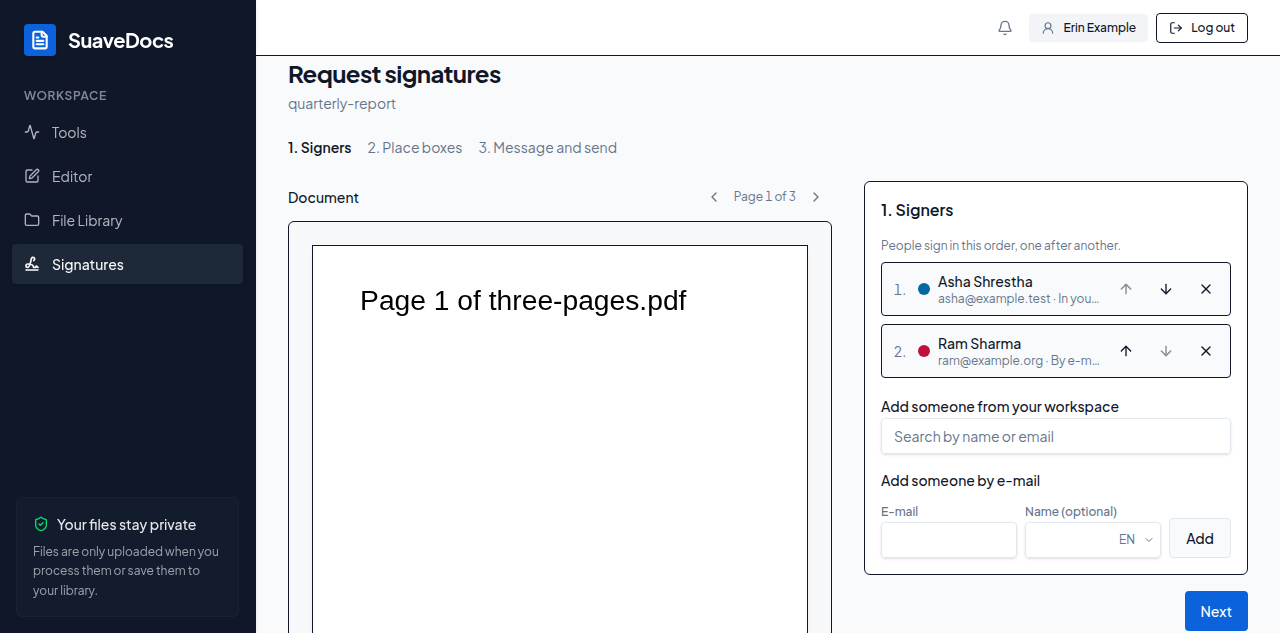 Figure: adding the people who sign.
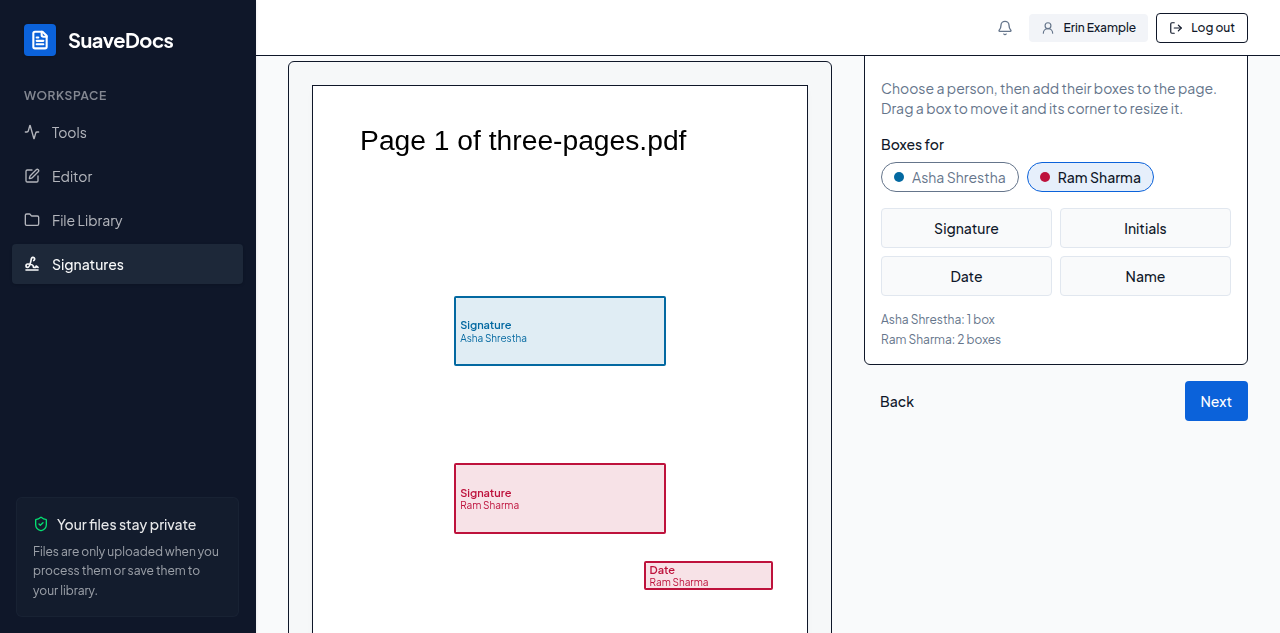 Figure: showing each person where to sign.
What you'll see when it's done: "Sent to <first person>. You'll be told when each person signs." and Open the request. The first person is asked to sign straight away; each next person is asked when the one before has signed.
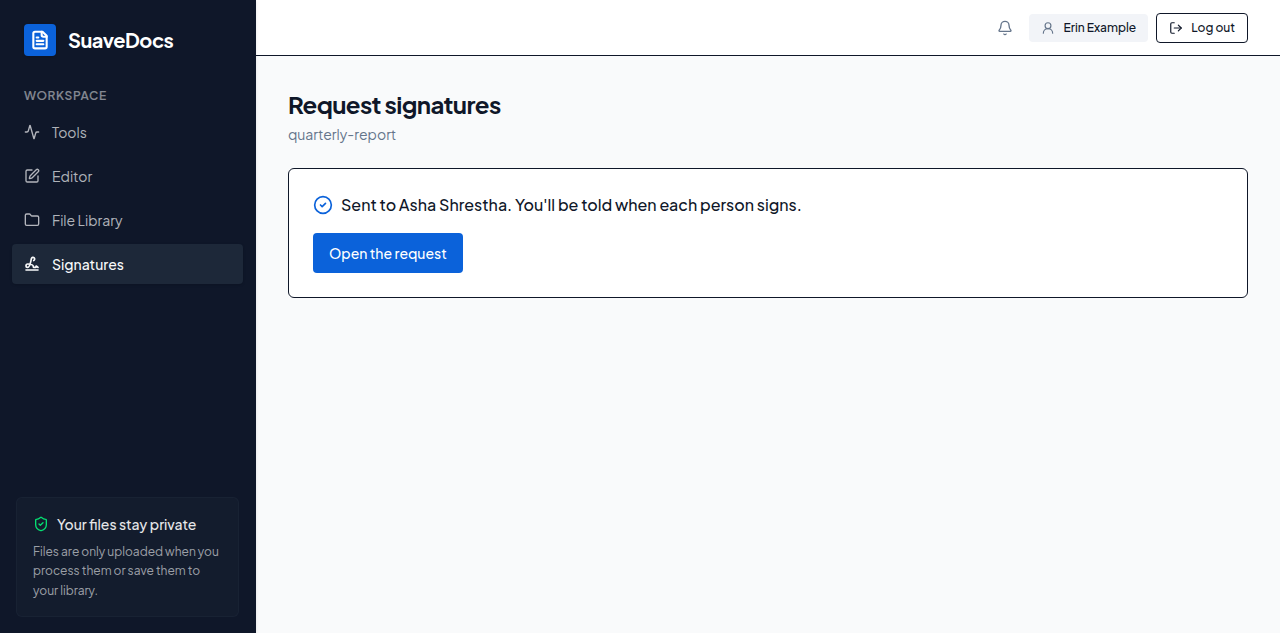 Figure: the request is on its way.
- "Add at least one person to sign." — add someone on step 1.
- "Each person needs at least one signature box. Add one for
<name>." — on step 2, choose that person and add a Signature box. - "
<e-mail>is already on the list." — each person can be on the list once. - "You can ask up to 20 people to sign one document."
- "Sending documents for signature isn't included in this workspace's plan. Ask a workspace owner for more, or sign it yourself with Sign PDF." — the draft is kept; sign it yourself with Sign PDF, or send it once the plan includes it.
- "Type an e-mail address, like name@example.com."
- "Choose between 0 and 14 days." or "Choose between 1 and 90 days." — check the two numbers on step 3.
- "Someone else changed this request. Reload to see the latest." — reload the page and check it again.
- "SuaveDocs couldn't check who you are, so people from your workspace can't be added yet. Reload the page and try again."
When SuaveDocs turns down Send request because of the people or the boxes, it takes you back to that step — 1. Signers or 2. Place boxes — with what was wrong, so you can fix it there.
A request you haven't sent stays under Sent as "Not sent yet". Open it: "This request hasn't been sent yet." — select Continue to carry on, or Delete draft.