Check a signed PDF
See who signed a PDF, when, and whether it changed after signing — for a PDF signed in SuaveDocs or anywhere else. Nothing is saved: the check only reads the file.
To check a PDF:
- Open Check a signed PDF from the tools list (under Edit).
- Drop the PDF, or select Choose a file or From library — one PDF at a time. SuaveDocs checks it straight away: "Uploading your PDF…", then "Checking the signatures…". The page of the PDF shows next to the result on a wide screen, and below it on a phone or tablet.
- Read the result. Each signature is one card under the same names the columns have — Name, E-mail, Signed, Issued by, Trusted by this workspace, Unchanged since signing and Timestamped (on a screen of medium width, one row of a table instead):
- Name and E-mail — who signed, as their certificate names them; "—" when it names no address. A signer whose certificate names nobody reads "Unknown signer".
- Signed — when they signed (for example "17 October 2026, 15:15", in your time zone); the timestamp server's time when the signature has one.
- Issued by — who issued their certificate.
- Trusted by this workspace — Yes when the signature was made with a certificate SuaveDocs made for this workspace, or with its organisation certificate. A certificate someone added themselves counts only if this workspace trusts whoever issued it — in practice, when your organisation's certificate issued it; one from an outside authority reads No.
- Unchanged since signing — Yes when nothing that was signed has changed since that person signed.
- Timestamped — Yes when a timestamp server vouches for the time.
- The page shows every signature's box, numbered as in the cards ("Signature 1:
<name>"). Select Show on the page under a signature (on a medium screen, its number in the table) to go to the page it is on — on a phone or tablet, where the page is below the result, it scrolls down to the page; the arrows above the page go to the others.
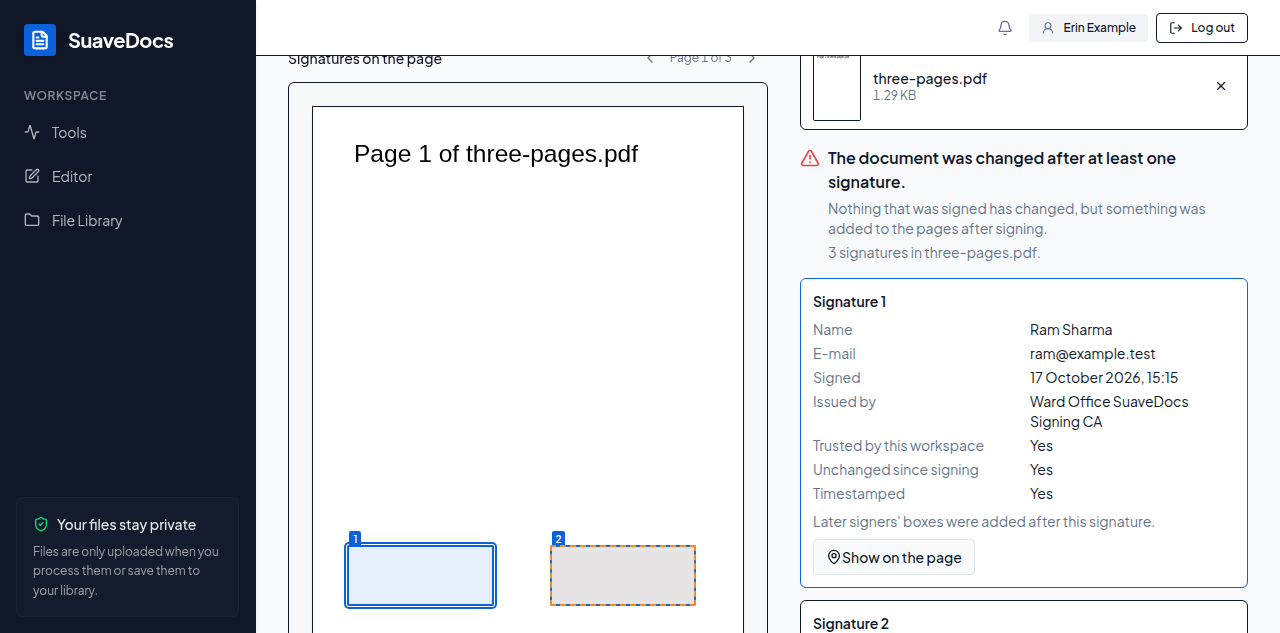 Figure: a checked PDF — the signatures beside the page, with their boxes.
What you'll see when it's done: a headline for the whole document, then "<n> signatures in <name>." (or "1 signature in <name>."), the signatures, a short explanation of the two Yes/No columns that matter most, and Check another PDF.
- "Unchanged since signing" — nothing was changed after any of the signatures, and everything added later was added by signatures this workspace trusts.
- "The document was changed after at least one signature." — one row is not enough to judge: read all of them. Under it, "Nothing that was signed has changed, but something was added to the pages after signing." says the signed content itself is intact and something was added on top (see the warnings below). "SuaveDocs couldn't read one of the signatures, so it can't say whether that part changed." appears when a signature could not be read.
- For a PDF without any signature: "This PDF has no signatures."
Warnings under a signature:
- "Something was drawn on the page after this signature." — someone added a drawing or a box to a page after that person signed. It is outlined in red on the page ("Drawn after the signature"). What you see on that page is not exactly what they signed: ask whoever sent the PDF for the original.
- "Later signers' boxes were added after this signature." — normal for a document several people signed in SuaveDocs: the next people's boxes went on after this person signed. They are outlined on the page ("A later signer's box").
- "Boxes were added after this signature by
<name>, whose signature this workspace doesn't trust." — a box was added by a signature this workspace doesn't trust ("another signer" when it names nobody; "Boxes were added after this signature by other signers, whose signatures this workspace doesn't trust." when several such signatures name nobody). - "Some of what was added can't be shown on the page." — something was added whose place on the page SuaveDocs couldn't read.
A signature SuaveDocs couldn't read shows as "A signature SuaveDocs couldn't read", with No only in the Trusted by this workspace, Unchanged since signing and Timestamped columns and "—" for the rest. A signature SuaveDocs could read that is not drawn on a page says "This signature isn't drawn on a page."
- "This PDF couldn't be checked." — select Check again. If it happens again, the file may be damaged.
- "This PDF is password-protected. Remove the password first, then try again." — use Remove a password first, then Try another file.
- "This file couldn't be read as a PDF. It may be damaged, or not a PDF at all." or "This file isn't a PDF we can read." — select Try another file.
- "This file is too large to process. Try a smaller file." — select Try another file.
- "Checking signatures isn't available on this server yet. Ask an administrator."
- On the desktop app, offline: "Checking signatures needs a connection."; signed out: "Checking signatures needs a signed-in person." The page still shows the PDF, and Check the signatures appears when you're connected and signed in again.