Creating a team
To create a team:
- Open the account menu, select Switch workspace, then Create a team. The page is headed "Create a team", and its first part is Name your team.
- Type the Team name. Under it, SuaveDocs shows the Web address your team will have, such as
suavedocs.example.com/w/acme-ltd, and says "Available" once it has checked. If the address is taken, it says "Not available. Try acme-ltd-2?" (or "Not available. Try another address." when it has no suggestion) and the address shown is the one SuaveDocs suggests; select Use this to put the suggestion in the address box. To choose your own, select Change, edit the address (at least 3 letters or numbers; SuaveDocs says "Use at least 3 letters or numbers." when it is too short, and "Use only lowercase letters, numbers and hyphens." when it has anything else). A name with fewer than 3 letters a–z or numbers in it — a name written in Nepali, for example — starts with the addressteam(or the free one SuaveDocs suggests, such asteam-2); the name itself stays as you typed it, and you can select Change to choose a different address. - Select Create team. The button reads "Creating…" while it works, and the page moves on to Invite people.
- In Invite people, type the E-mail addresses, one per line or separated by commas, choose Member or Administrator, add a message of up to 500 characters if you like, and select Send invitations. Each address gets its own answer underneath: "Invitation sent", or Copy the link and send it yourself. when SuaveDocs could not send the e-mail, or the sentence SuaveDocs gives when someone cannot be invited. If sending to some addresses went wrong, select Send invitations again: only the addresses that failed are sent again, so nobody is invited twice. Otherwise the button stays unavailable until you change the addresses. Select Continue when you have read them. If you would rather invite people later, select Skip for now.
- The last card says "
is ready." with Go to your team and Manage members.
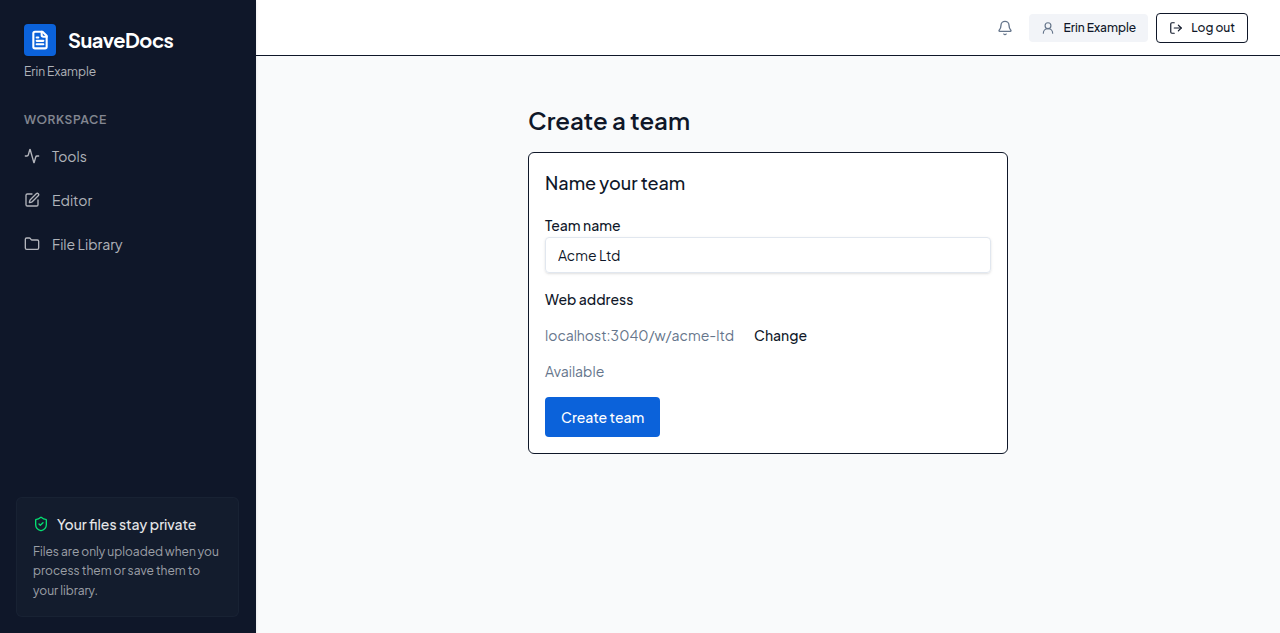 Figure: The Create a team page on its first step, Name your team, with "Acme Ltd" typed and its web address marked Available.
If something goes wrong
If the address was taken in the meantime, the address box opens with SuaveDocs' sentence so you can pick another. If SuaveDocs says "Still setting up. Try again in a moment.", the team exists but is not finished: select Finish setting up (it reads "Finishing…" while it works), and SuaveDocs carries on to Invite people. If you have to confirm your e-mail first, SuaveDocs says so with a button to do it. If you have reached a limit, SuaveDocs shows its own sentence. On the desktop app and on a single-organisation SuaveDocs, the page says "Teams are only available on SuaveDocs cloud."