Search and filters
Above the table are the box Search files... and the button Filter tags. Both look in the open folder and in every folder inside it, and the table updates as you type or tick.
To show only files with certain tags:
- Select Filter tags. A list opens with every tag on the files of the tab you are in, and how many files carry each one. If you have none yet it says "No tags yet."
- Tick one tag or several. To find a tag in a long list, type in Find a tag; if nothing fits it says "No tag matches."
- The tags you ticked appear as small chips under the search box, and the number next to Filter tags counts them. The table shows at once only the files that carry every tag you ticked: ticking more tags narrows the list.
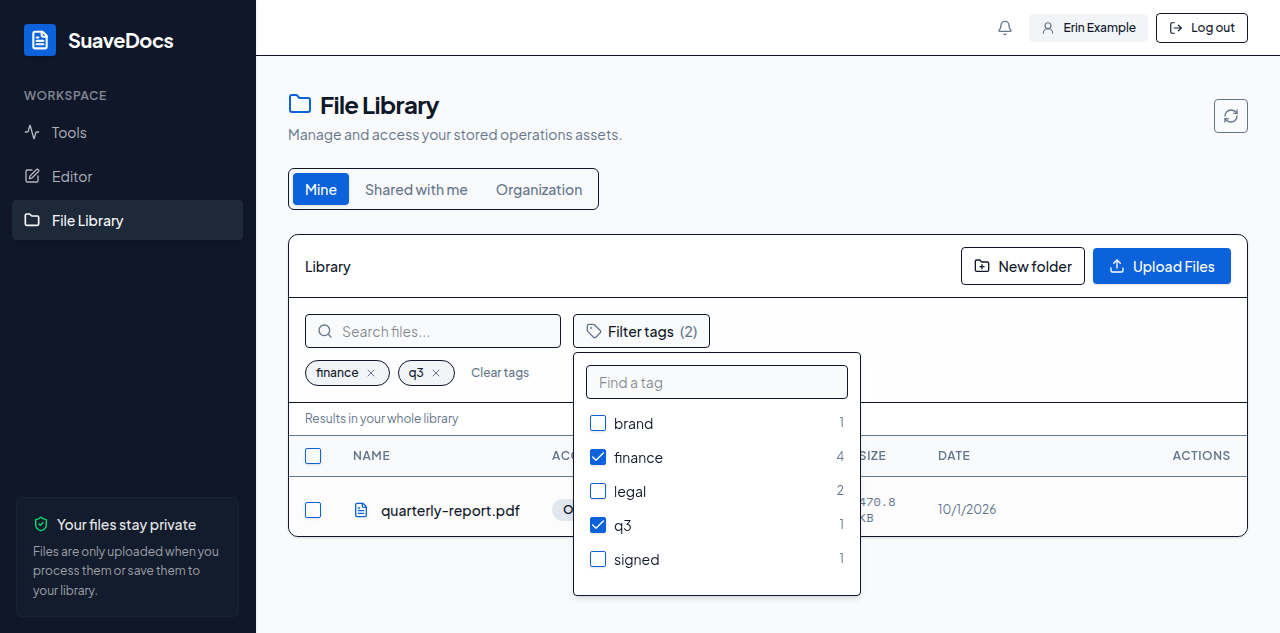 Figure: the Filter tags list, with two tags ticked.
To take a tag off: select the × on its chip (its tooltip reads "Remove <tag>"), or untick it in the list. From two chips up, Clear tags removes them all. The chosen tags stay when you open another folder from the path or switch tab. A very long list shows the first 500 tags and says "Showing the first 500 tags." under them; a tag you have chosen is always listed, ticked. The chosen tags are kept in the page's address, so the browser's Back button brings the earlier selection back, and a link to the page opens with the same tags chosen.
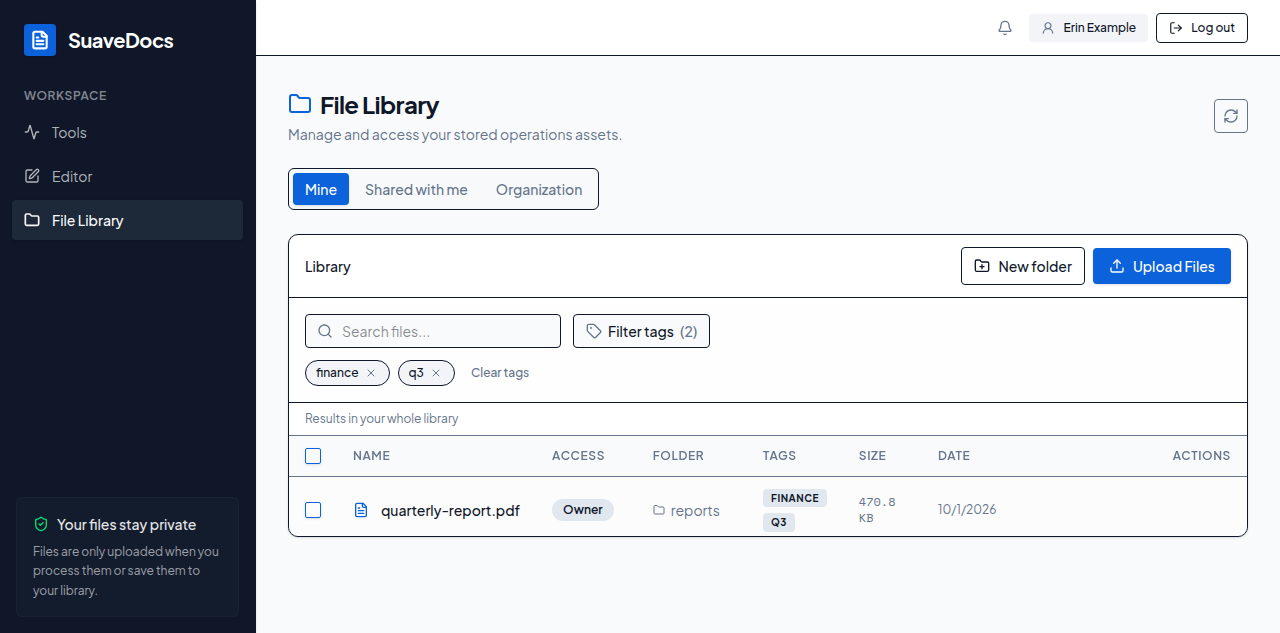 Figure: the chosen tags as chips above the table.
While you search or have tags chosen, the folder tiles are hidden, a line reads "Results in <folder> and the folders inside it" ("Results in your whole library" at the top), and a Folder column shows where each file is — select it to open that folder (the search and the tags are cleared for you, so you see that folder's own files and folders). If nothing matches: "No files match your filters." Clear the search and the tags to see the open folder again. The Archive tab has no tags to filter by.